Animations add delight and flow, but for some users they can trigger motion sickness or distraction. Accessibility means giving users control. In Webflow, you can design animations that adapt gracefully for those who prefer reduced motion.

Meta Title: Accessible Animation in Webflow: Designing for Reduced Motion
Meta Description: Learn how to design accessible animations in Webflow that respect user motion preferences. Discover how to use prefers-reduced-motion, adjust Interactions, and create inclusive web experiences.
SEO Keywords: accessible animation Webflow, reduced motion Webflow, prefers-reduced-motion CSS, inclusive web design, accessibility animation, UX animation best practices
Animations can make websites feel dynamic, alive, and interactive — but not everyone experiences them the same way. For some users, too much motion can cause dizziness, distraction, or even motion sickness.
That’s why accessible animation is an essential part of modern web design. It ensures that animations add value without creating discomfort. In Webflow, it’s easier than ever to design motion that’s both beautiful and inclusive.
This guide explores how to design for reduced motion preferences, use the prefers-reduced-motion CSS feature, and build animations in Webflow that enhance rather than overwhelm.
According to the Web Content Accessibility Guidelines (WCAG 2.1), animations that can’t be paused, stopped, or hidden can negatively affect users with vestibular disorders or cognitive sensitivities.
Accessibility is not just about color contrast or keyboard navigation — it’s also about how motion feels. When done right, animation helps users understand flow and feedback. When done wrong, it can make your site unusable for some.
Inclusive motion means:
prefers-reduced-motion Media QueryMost modern browsers and operating systems now include a user setting called “Reduce Motion.” Designers can detect this using a CSS media query:
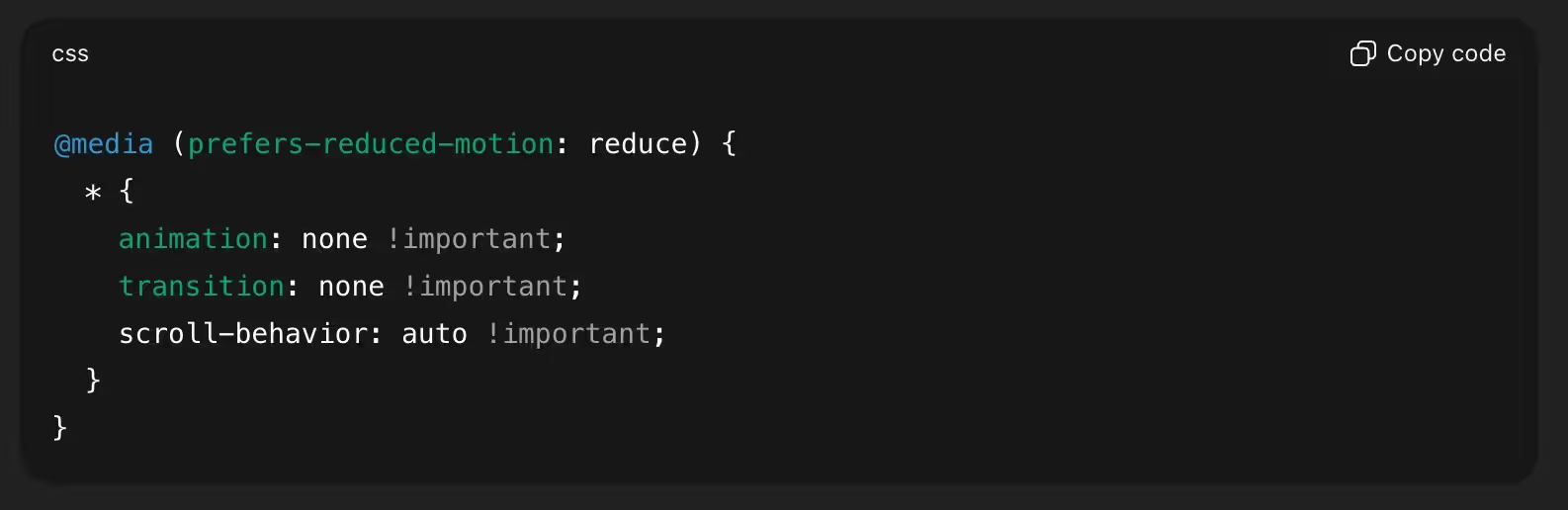
When this setting is enabled, users are asking for a simpler experience — fewer transitions, less movement, and no large-scale parallax or scroll-triggered effects.
By adding this snippet to your Webflow Project Settings → Custom Code → Head, you ensure your animations respect those preferences automatically.
Accessible animation doesn’t mean removing all motion. It means designing with intention.
Here are best practices for animation in Webflow:
Motion should guide users — not distract them.
Examples:
Use short durations (under 600ms) and gentle easing (ease-out or ease-in-out). Avoid sharp, bouncing, or looping motions that may cause visual fatigue.
Auto-playing backgrounds, floating elements, or infinite scroll animations can overwhelm users. Let them trigger motion intentionally through scroll or hover, not automatically.
When creating Interactions:
After implementing reduced motion settings, test your site in real conditions:
You can also use browser DevTools to simulate the reduced motion setting and confirm that animations are paused or simplified.
top, left, or width (causes jank).A good rule: if your animation doesn’t improve understanding, it’s probably unnecessary.
Accessible animation isn’t just good ethics — it’s good UX and SEO.
Google prioritizes user experience through Core Web Vitals, which measure site speed and interactivity. Heavy animations can hurt Largest Contentful Paint (LCP) and Interaction to Next Paint (INP) scores.
By optimizing animations and respecting reduced motion, you:
It’s a win for both humans and algorithms.
Let’s say you’re building a portfolio page with scroll-triggered reveals:
In Webflow:
translateY.The visual experience remains engaging — but now it’s comfortable for everyone.
Designing accessible animation is about respecting comfort and control. Not every user experiences motion the same way — and that’s okay.
By combining Webflow’s visual Interactions with simple CSS media queries, you can build websites that are both expressive and inclusive.
Accessible motion doesn’t limit creativity — it elevates it. It challenges us to communicate meaning through clarity, rhythm, and empathy.

.svg)
.svg)
.svg)