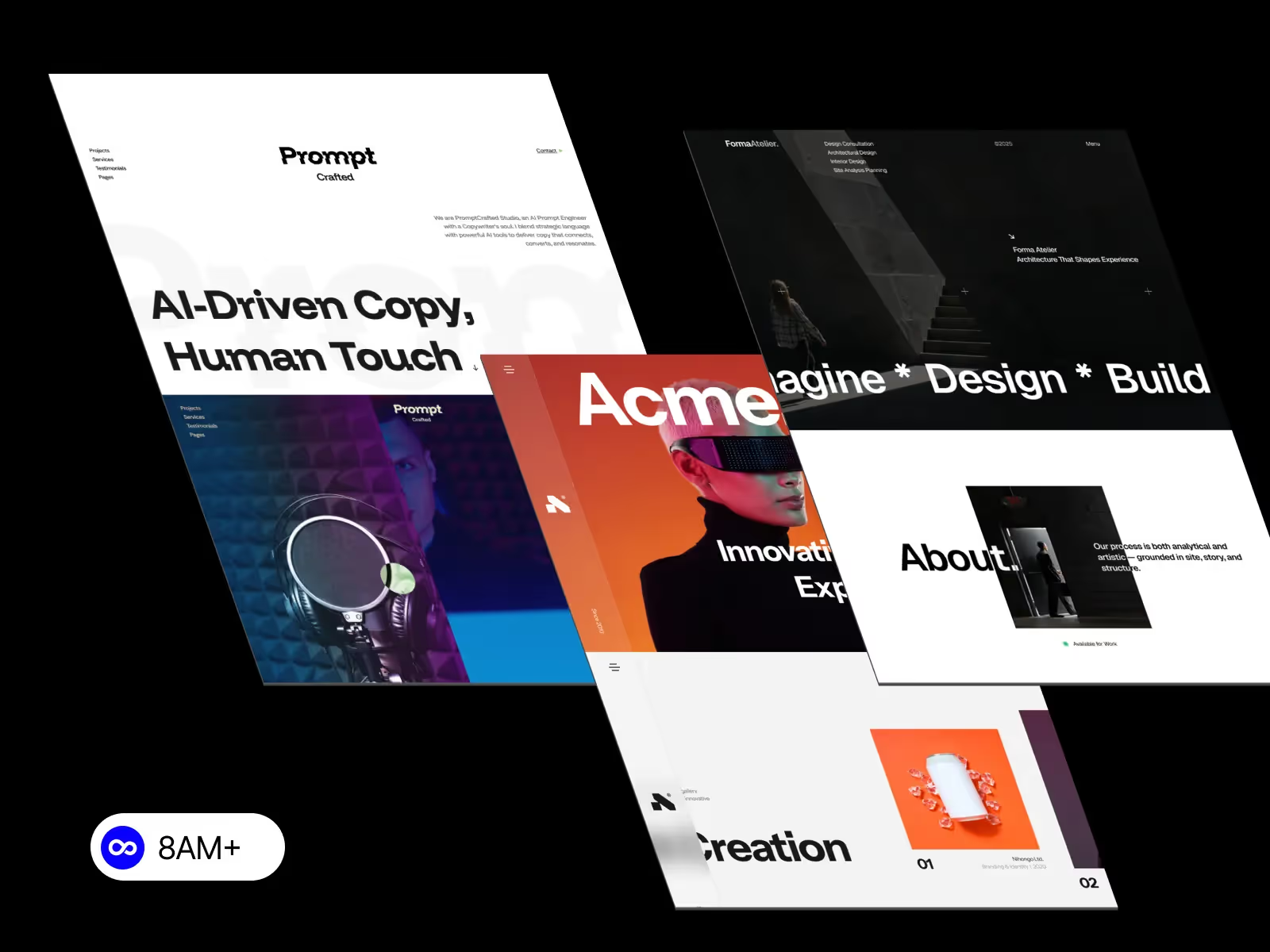
Every pixel matters when it comes to web performance. Unoptimized media files—large images, heavy videos, and unused assets—can slow your Webflow website, increase bounce rates, and hurt your Core Web Vitals scores. Fortunately, Webflow provides built-in tools that make optimizing your assets straightforward. By properly compressing, resizing, and serving responsive images, you can deliver a faster, more accessible, and SEO-friendly website. This guide walks through how to optimize media assets in Webflow, from images and videos to background textures and Lottie animations.

Media files typically account for 60–80% of total page weight. When these aren’t optimized, users experience:
Google prioritizes websites that deliver efficient experiences. Optimizing your media assets is one of the easiest ways to improve both user satisfaction and search visibility.
Start optimization before your assets ever reach Webflow.
Use tools like TinyPNG, Squoosh, or Compressor.io before uploading. Aim for:
If your image displays at 1200px wide, don’t upload a 4000px file. Oversized images waste bandwidth and processing time.
Webflow automatically generates multiple image versions in different resolutions when you upload a high-quality image to an Image element.
Benefits:
Pro tip: Avoid using background images for content-critical visuals—use Image elements instead so Webflow can generate responsive variants.
Backgrounds often slow pages the most.
repeat-x or repeat-y).Videos can add emotion and storytelling but easily bloat load time.
It’s widely supported and offers small file sizes for high quality.
Embed from YouTube, Vimeo, or Cloudflare Stream to reduce load on your Webflow hosting.
Set videos to load only when visible on screen. You can do this using Webflow’s “While Scrolling in View” triggers or native lazy-load attributes.
Animated GIFs are huge and unoptimized. Convert them to MP4 or Lottie JSON for a 70–90% size reduction.
Lottie and SVG animations are lightweight but can still impact performance if not optimized.
Over time, projects accumulate old uploads. Regularly cleaning up assets can reduce site bloat.
In Webflow:
This keeps your site light and easier to maintain.
Optimization isn’t complete until you measure results. Use:
Regular testing ensures your optimizations deliver real-world improvements.
.webp, .avif) wherever possible.These refinements push your performance metrics from “good” to “great.”
Optimizing media assets in Webflow isn’t just a technical chore—it’s a design responsibility. Every kilobyte saved improves user experience, SEO ranking, and conversion rates.
By compressing files, using responsive images, lazy-loading heavy media, and cleaning up unused assets, you ensure that your Webflow site loads faster, looks sharper, and performs flawlessly across devices.
A fast site isn’t just good UX — it’s good business.
Explore performance-optimized Webflow templates at 8am.design — crafted for creative teams that care about speed, storytelling, and scalability.





.svg)
.svg)
.svg)