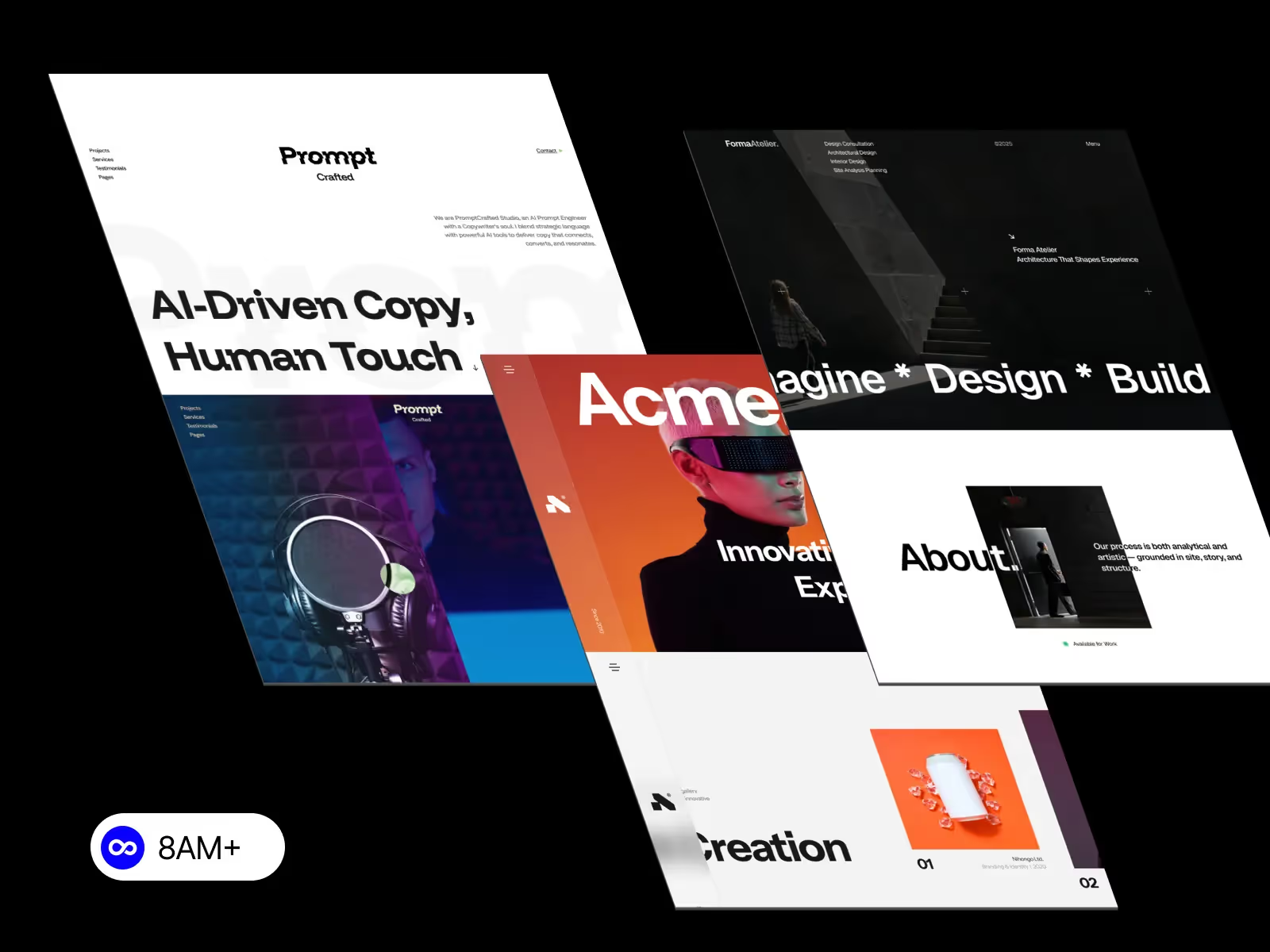
Fast websites convert better, rank higher, and feel smoother. Even though Webflow handles hosting and CDN optimization automatically, your design choices still affect speed. This checklist helps Webflow designers audit, measure, and optimize performance for real-world results.
1. Optimize Media Assets
- Compress images using WebP or AVIF before upload.
- Use responsive image settings in Webflow (auto-generates multiple sizes).
- Lazy-load below-the-fold visuals.
- Replace GIFs with Lottie or MP4 loops for smaller file sizes.
2. Clean Up Animations & Interactions
- Limit page-load animations to avoid blocking Largest Contentful Paint (LCP).
- Animate only transform and opacity for 60 fps performance.
- Batch scroll reveals instead of triggering each element individually.
3. Structure Efficient Layouts
- Avoid heavy nested divs; use flex and grid efficiently.
- Combine similar components with classes instead of duplicates.
- Use Symbols or Components for reusable, clean structure.
4. Audit Fonts
- Limit to 2 – 3 weights per family.
- Use system fonts for UI text when possible.
- Enable font display: swap for faster perceived loading.
5. Test & Monitor
Use these tools regularly:
- Webflow Audit panel – accessibility and performance hints.
- PageSpeed Insights / Lighthouse – track LCP, CLS, INP.
- Chrome DevTools → Coverage – find unused CSS/JS.
Conclusion
A high-performing Webflow site starts in the design stage. Optimize assets, simplify motion, and test early — your users (and SEO metrics) will thank you.





.svg)
.svg)
.svg)