Migrating your website doesn’t have to mean losing traffic. With this Webflow SEO Migration Checklist, you can confidently move your site while keeping your SEO intact. Take your time, document everything, and test before you publish. Once everything is live, your new Webflow site will not only look better — it’ll perform better too.

Moving your website to Webflow is one of the smartest upgrades you can make. The platform offers beautiful design freedom, clean code, and lightning-fast performance — all without the need for plugins or heavy maintenance.
But here’s the catch: a poorly planned migration can hurt your SEO and cost you valuable organic traffic. The good news? With the right checklist, you can move to Webflow smoothly and keep your Google rankings right where they are.
This guide walks you through a step-by-step Webflow SEO migration checklist — perfect for beginners, freelancers, and small businesses planning the big move.
Before touching Webflow, start with a complete SEO audit of your existing site. Use tools like Ahrefs, SEMrush, or Screaming Frog to export your URLs, meta titles, and backlinks.
Identify which pages bring the most traffic, have strong backlinks, or rank for important keywords — these are your must-keep pages.
🟢 Goal: Create a clear snapshot of your current SEO performance before migration.
Your URL structure is one of the biggest factors in maintaining SEO value.
If possible, keep URLs identical to your current site. When changes are necessary, plan them carefully and record both the old and new URLs in a spreadsheet.
🟢 Pro Tip: Avoid unnecessary URL changes. Consistency means fewer redirects and better rankings retention.
Redirects tell Google where your content has moved, preserving your SEO equity.
In Webflow, you can easily set these up:
🟢 Example:/old-page → /new-page
🟢 Tip: Double-check redirects using tools like Redirect Checker or Screaming Frog to avoid 404 errors.
Once your site structure is ready, it’s time to optimize your new Webflow pages.
Check each page for:
🟢 Webflow has a built-in SEO editor — you can find it under each page’s settings tab.
Webflow automatically generates a sitemap.xml and robots.txt for every project. But don’t skip this step — review them to make sure all important pages are included and nothing crucial is being blocked.
Once confirmed, submit your sitemap to Google Search Console to speed up reindexing.
After publishing your site, re-add your tracking tools to ensure data continuity.
Connect:
🟢 You can add these scripts under Settings → Integrations → Custom Code.
After your Webflow site goes live, monitor its performance daily for the first few weeks.
Check:
🟢 If you spot a sudden traffic drop, double-check redirects, missing pages, or no-index settings.
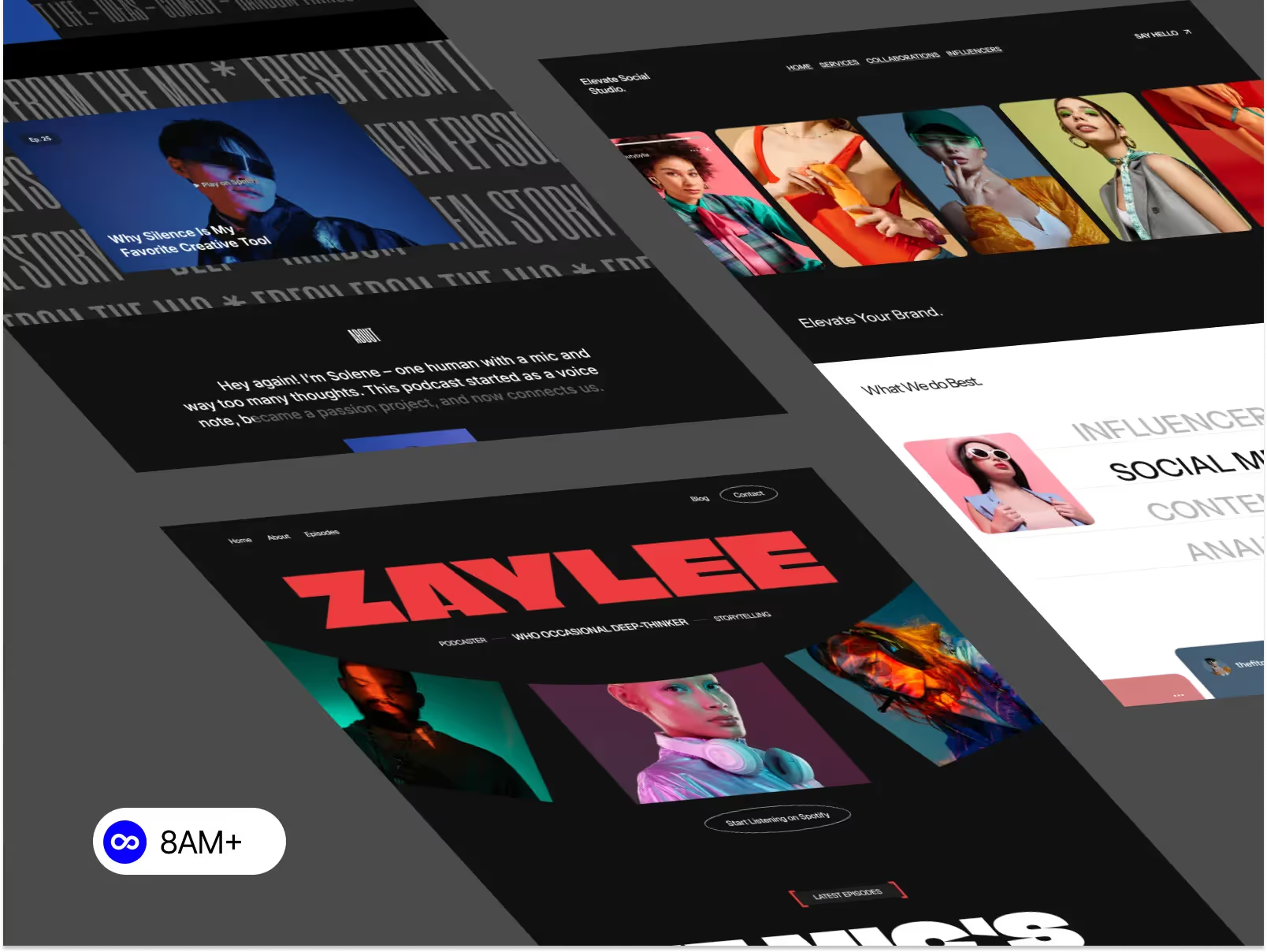
If you’re starting fresh or redesigning during migration, consider using SEO-ready Webflow templates from 8am.design.
Templates like Formalier, Acme, and PromptCrafter are built with optimized tags, mobile responsiveness, and fast loading speeds — making them ideal for portfolios, creative studios, and small businesses that want to launch quickly and rank well.




.svg)
.svg)
.svg)